
tcpMDT
Cross Sections - MDT26
Cross-sections
Allows one to moify the parameter values affecting the commands used to obtain and draw cross-sections.
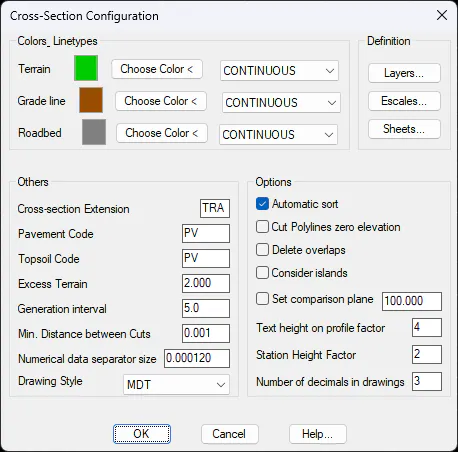
Colors and Types of Lines
Configuring the different colors and types of lines associated with the drawing of different elements of the cross section and the typical section.
Terrain: Color and type of line of the cross section that represents the terrain in the drawing of profiles.
Vertical Alignment: Color and type of line of the terrace or subgrade in the drawing of profiles.
Roadbed: Color and type of line of the roadbed that represents the section in the drawing of profiles.
Others
Cross Section Extension (TRA): Extension for existing and proposed cross-section files.
Pavement Code (PV): Code used to differentiate initial and final vertices of reinforcements in cross-sections.
Topsoil Code (PV): Code used to differentiate initial and final vertices between which the topsoil calculation will not be made.
Excess Terrain (2.0): Value indicating the terrain distance drawn after the grade line cut, which only affects the drawing of cross-sections.
Generation Interval (10.0): Default generation interval in the generation of proposed terrain.
Minimum Distance between Cuts (0.01): Minimum distance that must exist between two successive objects to be cut.
Numerical Data Separator Size (0.00025): Size of the different separators that form part of the numerical data when it is drawn.
Drawing Style: Enables us to select from different profile representation styles. For each profile the style will customize the labeling of the numerical data, texts, data prefixes to be labeled ....
Advanced
Automatic sort: This option in general should always be activated. If it is disabled, the vertices will not be ordered in the management of the cross sections. With this option disabled, it will not be possible to perform volume calculations.
Cut polyline zero elevation: Upon enabling this option, the program will automatically interpolate the elevation of those polylines used for the generation of cross sections and which have a zero elevation.
Delete overlaps: Upon enabling this box, we can ensure that when generating the cross sections, if they cross inside in the curve, this is obtained as far as the intersection with the former.
Consider Islands: In the generation of cross sections, if this option is enabled, the possibility that there are islands on the surfaces from which the profiles are generated will be considered.
Set Comparison Plane: If we enable this option the drawing of the comparison plane for the cross sections will always be carried out at the same elevation. The elevation is specified under this same option.
Text height on profile factor: Text height multiplier factor for those drawn under the cross section drawing option.
Station Height Factor: In the drawing of cross sections, multiplication factor of the height of the text that represents the Station.
Number of decimals in drawings: We set the number of decimals we want for labelling the elevations, surfaces and volumes using the command Drawing Cross Sections.
Definition of Layers
Allows one to name the various layers used when working with cross-sections.
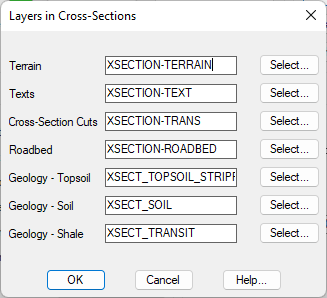
Terrain (TERRAIN): Name of the cross-sections' terrain layer.
Cross-Sections (XSECTIONS): Name of the cross-section profiles' alignment layer.
Cross-Section Cuts (XSECTIONS): Name of the layer where the cuts are drawn.
Roadbed (ROADBED) : Name of the layer where the cross sections' roadbed is drawn.
Geology-Organic (XSECT_CLEAR VEGT): Name of layer where clear vegetation is drawn.
Geology-Soil (XSECT_SOIL): Name of layer where soil is drawn.
Geology-Shale (XSECT_TRANSIT): Name of layer where transit is drawn.
Define Scales
Refer to the Define Scales for longitudinal profiles section.
Define Sheets
Refer to the Define Sheets for longitudinal profile section.