
tcpMDT
Menus - MDT26
Menus
Offers the possibility of configuring the way the program's menu layouts are shown in CAD.
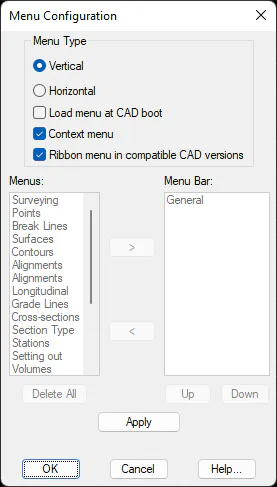
The Vertical option is active by default, which indicates that just one menu MDT appears on the CAD toolbar, from which the other system menus drop down.
If the Horizontal option is selected, individual system menus can be chosen to appear on the CAD toolbar. Thus, the main MDT menu is hidden and only the ones selected are shown.
Load menu at CAD boot: This option will normally be deactivated as CAD memorizes the last menu with which it closed, and it loads automatically on starting up again. However, it has been noticed that in certain configurations it only loads the CAD menu and not those of other existing applications, in this case MDT.
Hence, if this option is enabled, each time CAD is started up MDT will automatically load its own menu, thereby avoiding the user having to do this manually.
Context Menu: If this option is enabled, the context menus for MDT objects that are available will automatically be activated.
Ribbon menu in compatible CAD versions. If this option is enabled, ribbon menu will be shown in those CAD versions.
> Adds the menu selected from the Menus box to the Menu Bar box.
< Deletes the menu selected from the Menu Bar box.
Delete All: Deletes all menus from the Menu Bar box.
Up: Moves up one position in the Menu Bar box.
Down: Moves down one position in the Menu Bar box.
Apply: Updates the CAD menu bar with the changes made.