tcpMDT
Export to GML - MDT26
Export to GML
 | Command to execute in the CAD |
|---|---|
Vertical menu | MDT26 > Plots > Export GML Cadaster |
Ribbon menu | Plots > Utilities > Export GML |
Command line |
This will allow you to export selected parcels or buildings to the GML format, this is the format used by the Cadaster for exchanging information.
Depending on the type of plot to be exported, the output file will be selected in one of the following ways:
Plots: In the event that you select several plots, the software will offer you the option of exporting each plot in a file or all plots in the same file.
Buildings: In the case of buildings, if several buildings are selected, the requested file will be the prefix for each of the new GML files created. A GML file will always be created for each building.
Then the command will request the CRS (Coordinate Reference System) in which the plots and/or buildings to be exported are located. It is therefore necessary that, when executing the export command, the selected plots or buildings are all in the same CRS.
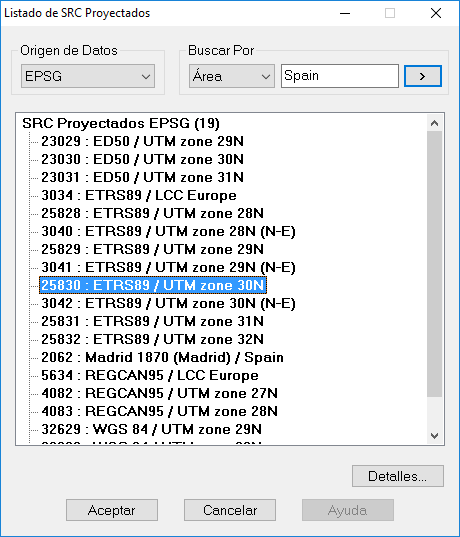
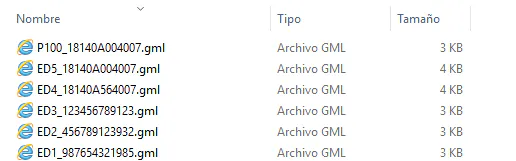
Once the CRS has been selected, all the GML files will be created in the selected folder according to the selected elements. These files will be called the name of the plot or building followed by its cadastral reference if you have assigned it.
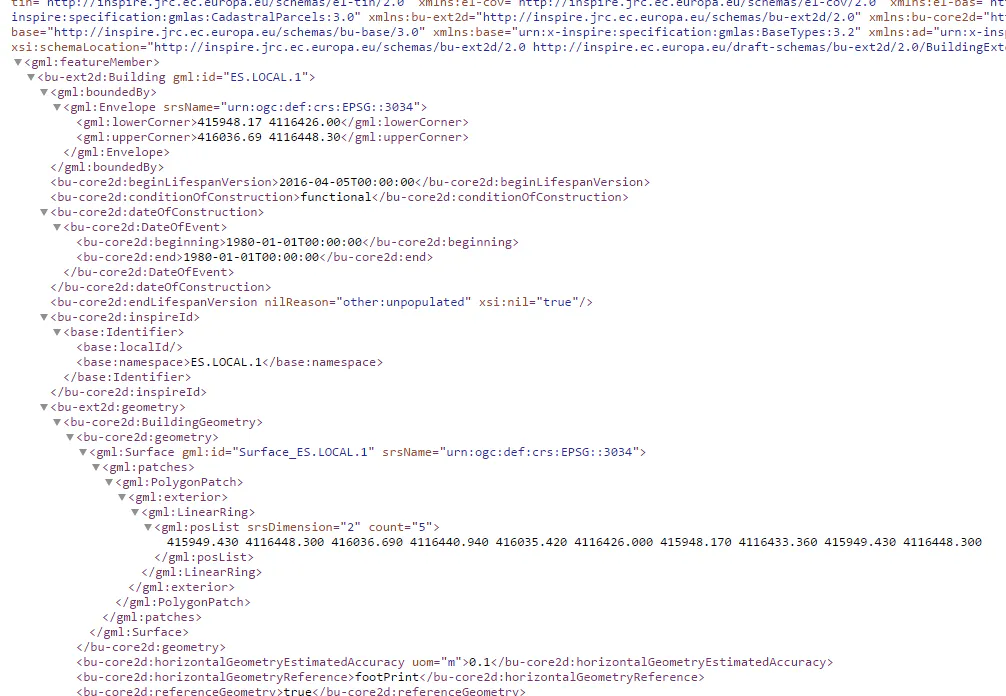
In the following image you can see a fragment of a GML file.